Optical Inspection Unit Tinkering

I had a “why didn’t I think of that before” moment today.  I’m fortunate to have access to an optical inspection unit for work.  It’s essentially a binocular microscope that allows me to inspect a PCB for soldering or manufacturing errors.  I’ve been realizing how useful the tool is for learning how to solder -- the microscope reveals a huge number of flaws that I never knew existed.  It’s bringing me back to middle school science class, where it seemed like microscopes revealed an entirely different world.  The many uses of a binocular microscope for soldering is a whole other post…

My eureka moment came when I wanted to take a photo of some details on the PCB.  The macro lens on my camera really wasn’t cutting it, so I tried to hold the camera up to the microscope.  This worked… somewhat.  It was really hard to hold the camera in position -- the focal “sweet spot” of the microscope is very narrow.  I did manage to snag one decent photo with my cellphone:

Cellphone image through microscope

The image is far clearer looking through the microscope in person, but you can still see some neat details.  The solder paste that looks like a very solid silver color at normal magnifications is actually made up of many tiny balls of metal.  Using the microscope, the paste seems to have the consistency of soft foam.  This is pretty old solder paste, so it didn’t apply very evenly at all.

This got me thinking about a slightly more permanent solution.  I realized that my webcam would get a decent image if held up to the microscope.  So I dug around my apartment for something cylindrical (the venerable toilet paper tube to the rescue!) and fashioned a crude webcam mount:

The webcam-microscope mount, pretty crude

Since everything is held in place by electrical tape, the image is still pretty touchy.  But it’s still a very nice improvement!  Now I can place small components without craning my neck for long amounts of time.  Having the BOM, schematic and PCB layout open at the same time is also very handy.  Here is the full setup:

The microscope in use on my super cluttered desk

The bummer is that the image quality is far from perfect.  I think it’s a combination of optics and image sensor.  The webcam is technically an HD webcam (1080), but in practice the image sensor doesn’t capture great HD video -- there is some definite blurring.  It’s still a useful tool, not only during assembly/rework, but for documentation.  Here is a sample video I shot while testing the system out.  I’m placing some rather small (0402) resistors onto a PCB.  At such a tiny scale, everything is big -- the tip of the tweezers, the blobs of solder paste, my hand shaking due to coffee…

*VIDEO* -- placing 0402 resistors on board (make sure you select 720p or 1080p resolution) -- *VIDEO*

Apartment Radiator Temperature

One of the many projects i’ve been slowly mulling over involves the radiator in my apartment.  As with most urban apartments, the radiators in my apartment are confusingly inconsistent.  Freezing cold when you need it most, scalding hot when you don’t, it’s a constant frustration.  There is a single knob on the radiator, and since it’s a Single Pipe Steam Radiator I can’t leave it partially open or the radiator will fill with water and start spitting it out of the auto-bleed valve.  For the past year i’ve wanted to install some kind of automatic control on this knob, and i’m finally taking some first steps.

A more pressing matter is that some of the radiators in our apartment don’t seem to be working well at all.  Mine seems to be working well: it takes an hour or so to get going, then the room is quickly too warm.  I want to learn a bit more about exactly what the heat in my apartment is doing, why the pipes seem to alternate between hot and cold, how long it takes my radiator to heat up.  Phase 1 of this project is to model the ability of the radiator to heat the room so that I can design something to accurately control the temperature.

I have a bunch of temperature probes left over from my PC Overclocking youth.  They look very similar to these probes.  They are effectively 10K NTC Thermistors with wires attached, and can be found at many fine retailers.  Thermistors operate on a very simple principle, they change resistance with temperature.  So we need to log the resistance of each probe.  This is easier said than done.  Conventional engineering sources will tell you that a Wheatstone Bridge Circuit is the way to go, and it largely is the best way.  However, to measure resistance using a wheatstone bridge and an arduino, an amplifier is needed to read from the bridge -- the measurement is between two legs of the bridge *not* ground.  Other more simple techniques involve a simple resistor divider, but in practice the results can be very non-linear.

EDIT -- I think i’m mistaken on the resistor divider technique.  On paper, the resistor divider should be just as linear as the current mirror (ignoring the effect of ADC current consumption, since that is common to both techniques).  A helpful poster on HN pointed out that both techniques can be linearized by using the Steinhart-hart equation.  I’ll have to give this a shot!

I ended up trying a basic current mirror.  A current mirror is essentially the building block for a simple current source.  It’s used to generate a known current, irrespective of voltage (as long as the circuit does not saturate).  By injecting a known current to the thermistor, the voltage dropped by the probe will be directly proportional to the resistance of the probe, and therefore the temperature.  Here is the circuit I used:

Dual Current Mirror Schematic

R1 and R2 set the current that is pulled through each thermistor.  I could have used a design that shared a single reference current, but I wanted the ability to trim the two channels independently.  This set current is approximately 276uA.  When the temperature probes are very hot, they will have a low resistance and will drop less voltage, causing the output voltages to be high.  When the probes are cold, higher resistance means a greater voltage drop, and a low voltage output.  So voltage follows temperature.  Here are some photos of the small circuit board I soldered together:

Top of the Empty PCB, with labels

Back of the PCB (note a few intentional solder bridges)

PCB with transistors and resistors installed, taped to my arduino

The circuit gives me two different channels.  I’m taping one temperature probe to the incoming steam pipe.  This always gets hot first when the boiler for the apartment complex turns on.  The second probe will be taped to the far end of the radiator.  This will record the time it takes steam to pass travel through the radiator, heating it up.  I hope to capture the amount of lag caused by the radiator bleeding air to get to steam.  Some photos of the temperature probe locations:

Location of channel 1 and the arduino

Location of channel 2, on the far side of the radiator

It was getting late, so I didn’t take the time to properly calibrate the sensors.  I wrote a very quick arduino sketch to print the two channel voltages every 30 seconds.  Then I plugged the arduino into my server (not too far away) and wrote a very simple python script to log the voltages and the unix time into a CSV file.  And went to bed (or tried to, the apartment was super warm!).  When I woke up I had lots of excellent data to work with.  You can view the following data on Google Docs with this link:

Recorded data from 1am to 12pm on Wednesday Nov 7th

Lots of interesting data in this chart!

  • The apartment boiler kicks in every hour, roughly
  • I turned off the radiator in the middle of the 9th peak, through the 10th peak, then turned it back on.
  • The radiator lags behind the boiler by 8-12 minutes
  • BUT, the radiator does not lag when cooling down -- has slightly more thermal mass, but not much.
  • The radiator lag is important!  If a radiator isn’t bleeding well, it will not get up to temp in time to enjoy the precious minutes of heat from the boiler.
  • The house boiler will stay on longer when heat is in demand -- the 9th, 10th and 11th peaks are typical morning wakeup times.
Good stuff!  I still have more measurement to do -- I need a sensor measuring the air temperature in my room to correlate radiator temperature and air temperature.  Maybe also an outdoor temperature sensor, to measure the impact of heat loss.  I think with the additional data, i’ll be in a good place to design a controller that will toggle the radiator based on the room air temperature.  This data confirms that my controller will need to be triggered on the pipe temperature, and that I should use a trailing edge dimming principle.  It’ll actually be really similar to a trailing edge SCR or Triac light dimmer circuit, just with a much, much slower reaction speed (an hour, instead of a few ms).
Maybe my next post will be a live data display with some express.js and mongo…  Stay tuned!

Raspberry Pi Contest!

This evening, at the very last minute, I strapped my traffic light to my backpack and hiked up to NYC resistor to attend the Raspberry Pi event.  In a surprising turn of events, we won the Raspberry Pi giveaway from Adafruit!  Admittedly we were only one of two groups that hauled our project to the hackerspace in the first place, but i’m incredibly gratified that the crowd enjoyed our project.

I’ve created a new project page for the Internet of Things Trafficlight.  Here is a shortcut to the pages i’ve written so far:

You can check out the trafficlight live at the following demo pages:
The documentation is a work in progress.  This gift is a harsh awakening -- I need to keep better documentation of my projects!  I consider it a great motivation to blog about what cool things we create with the new goodies.  Speaking of which, the gift backpack is very awesome.  We got as far as splaying the contents of the kit over our couch as if it was Christmas morning:

The goods, still scattered all over our couch

Feedback on the project and documentation is welcome!  You might want to try me on twitter @theterg, I can’t guarantee that comments on this blog will work.  Thanks again to Adafruit and Raspberry Pi!  It’s important to note that this wouldn’t have been possible without the Pi itself and the great rootfs and documentation from Adafruit.  You ROCK!

Javascript in Internet Explorer – being of the ‘uninitiated’

Let me preface this by saying that i’m far from a typical web-programmer. I guess you could argue that no such thing exists, but what I mean is that web-programming is not a world in which I consider myself to have much mastery. I consider it to be hacking territory, a sandbox, a toy. I’ve enjoyed whipping up interactive web applications as a means of teaching myself javascript, and as a way of enjoying it’s expressiveness. Since this is the way I try to learn most programming languages, eventually the cathartic toying recedes and it’s time to buckle down and attack real problems.

It often seems like cross-browser and cross-device support is something of a black art. Particularly anything involving Internet Explorer or Mobile Safari. It involves a lot of strange meta tags, hacky browser detection, and jumping-through-hoops program flow control. I’m seeing an awful lot of

if (ie8) {
   //grumble grumble hack for IE
} else {
   //how sane people do it
}

I can deal with this, for the most part. As long as it’s kept to a minimum. And there are more robust ways to handle the differences between IE and the rest of the world -- it just requires more abstraction. Socket.io, for example, does it a little bit more robustly and subtly. Little things like checking to see if an XDomain object exists, and using that over XMLHttpRequest (github). Ok, so beyond a certian point you just need to HTFU and dig into the implementational details. I can get behind that. I mean, but at least we can reliably check for and deal with this object.

However many of the other quirks related to IE compatibility are less clear. I’ve been working on a live demo for the BUGswarm platform, and i’m suddenly being plunged into tackling IE support. The very first error I hit is a lovely “SCRIPT5023: Function does not have a valid prototype object”. I read that and think, OK, a function object was instantiated and it doesn’t have a .prototype parameter. Thats a little strange. Even better, the error is being thrown from within Compatibility code from Mozilla:

var aArgs = Array.prototype.slice.call(arguments, 1),
        fToBind = this,
        fNOP = function () {},
        fBound = function () {
          return fToBind.apply(this instanceof fNOP
                                 ? this
                                 : oThis,
                               aArgs.concat(Array.prototype.slice.call(arguments)));
        };
}

Apparently it thinks fNOP no longer has a prototype object, so checking instanceof complains about not being able to find the prototype chain.  I’m mystified, as the MDN webpage  implies that this fixed in IE9, which I am testing on.  I start to dig deeper (hmm, this.prototype is undefined?) and then notice the “Document Mode” selector staring me in the face from the F12 developer pane:

Internet Explorer 9 F12 Developer Console

Strange, I don’t know if I want quirks.  I rather want… not quirks.  So I try “IE9 Standards”, refresh, and it works perfectly.  Getting closer.  I read that you can use the DOCTYPE and some extra meta tags to specify a particular rendering mode.  So I add this to the top of my page:

<!DOCTYPE>
<html>
    <head>
        <meta http-equiv="X-UA-Compatible" content="IE=9" />

Refresh the page, and it seems to work, great. Close the tab, clear the cache, restart the browser and try again -- failure. Odd. So I pull up the F12 developer pane, click on “Console” and refresh the page to catch the error. The application works perfectly again. WAT. Strangely, the F12 Developer pane needs to be opened for the application to work. I don’t need to click on anything, and it doesn’t even need to stay open. Simply opening the F12 Developer console, closing it, and refreshing the page was enough for the code to run.

So I haven’t solved this issue yet, but there is still much to try. The HTML code could use a few more runs through the W3C validator before I start crying foul. But I can’t help but be frustrated by this. I can deal with forcing developers to go through hoops, but asking users to open and close a developer pane is unacceptable. I’m sure that i’m doing something obviously wrong somewhere… IE can’t be all that bad, right? RIGHT?

*EDIT*
Turns out, stray console.log calls will cause IE to quit executing javascript if the debugger is not running to catch them. I feel… silly. I’m ever so tempted to override console.log with a function that safely checks for IE, but I can’t tell if that just makes me part of the problem. Another day.

Vegetronix Soil Sensor Test

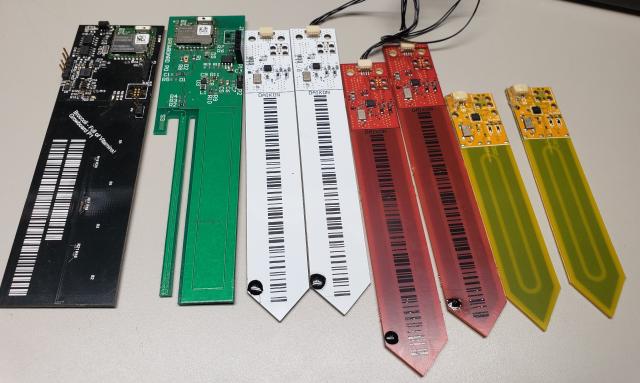
A week or so ago, I took the plunge and ordered a few different types of soil sensors:

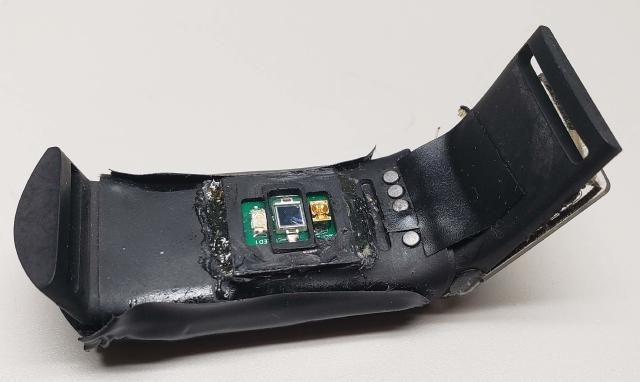
The analog soil moisture sensor will be used as a calibrator for the other two sensors.  I tried to get the gypsun blocks up and running, but they are fickle beasts.  They’ll need a whole blog post of their own.  The Vegetronix VH400 claims to use “transmission line techniques” to measure the “dielectric constant of the soil”.  This sounds remarkably similar to the simple sensor I tore down in a previous post.  I can confirm the goofy videos on the Vegetronix website -- the VH400 reacts to the human hand in exactly the same way that the cheap $18 sensor reacted.  The only difference is that the VH400 has a much more stable voltage output and some other additional processing.  The signal is far cleaner and easier to read.  I knew the VH400 would be a good sensor, so I wanted to put it to the test right away.

I dug around my parts pin and assembled the following parts:

The assembled pre-prototype

As you can see, the giant Li-Ion battery is powering the SparkFun USB Weatherboard.  The Weatherboard has a socket for an XBee radio.  Data is transmitted wirelessly from the XBee plugged into the Weatherboard to the XBee plugged into the carrier to it’s right.  The carrier (A USB Explorer board) is plugged into my server computer which is listening for the sensor data.  The Weatherboard uses the TX and RX pins of the XBee to send serial data containing the current temperature, humidity, barometric pressure, dew point, light level and battery level.  There was no pre-built way to connect the VH400 sensor to the weatherboard, so I had to improvise:

How the VH400 connects to the XBee

The VH400 needs power, so I soldered it’s red and silver wires into 3.3v and GND respectively (two readily available holes on the PCB).  The Black wire is the VH400 voltage output, and this is soldered to pin 20 on the XBee socket.  Pin 20 corresponds to ADC channel 0, so we should be able to measure the voltage output of the VH400 from the XBee.  I tried this configuration out, and got bad data from the ADC.  Then I realized that the XBee has a Vref pin which sets the voltage reference level.  This is pin 14 -- you can see the red wire I soldered from pin 14 to the nearest open 3.3v header on the board.

The XBees only required a small amount of configuration:
Weatherboard XBee:
  • Pin 20 Mode set to ADC
  • ADC Sample rate set to 7D0 (2000ms period)
  • ADC samples before TX set to 1
  • Address set to 0x1
  • PANID set to 1111 (to avoid conflicts)
Host XBee:
  • API mode enabled (ATAP=2)
  • PANID set to 1111 (to avoid conflicts)

I then wrote a super simple python script to read the data from both the SparkFun Weatherboard and the VH400 sensor, and to dump everything to a CSV file for later analysis.  You can find that project on github (i’ll be upgrading it to push the data to a live MongoDB server soon).  I then left the whole setup overnight, collecting data (starting at 1:30AM, stopping at 11:50PM).  Here is how the sensor looked in it’s patent-pending ultra-water-tight ziplock baggie after it rained:

VH400, meet basil

Here is all the data I collected: basil_050812.csv.  There are several things to note:

  • It was a day that was sunny in the morning but quickly clouded over.  The temperature briefly peaked to 90 when the sun was glaring down.
  • I went outside to examine the pot and must have bumped the moisture sensor, because the readings changed drastically.  From now on i’m making sure the sensor is inserted into the soil completely.
  • It rained off and on, making this a non-ideal test.
I plan on re-running the test on a day with better weather and without touching the moisture probe.  I look forward to being able to compare the change in soil moisture to other variables like humidity and ambient temperature.  The only half-decent graph I could extract from the data (it’s too late to do any in-depth analysis) is this:

Temp (blue) VS Humidity (green) over Time (secs)

The left 1/3′rd of the graph is night time, the peaky bit in the middle is the morning and afternoon pockets of sunlight, and the sloping right hand side is the drenching drizzle that ran throughout the day.  I hope I can get some better data soon!  Until then…

Preheating Plate + Tinfoil = Almost Reflow

I’ve been working on my techniques soldering whole boards using hot air reflow.  I’ve made many mistakes in the past, many habits I still have.  I was very impatient at the start -- cranking the heat way up and toasting the living hell out of any parts I was soldering.  Then I learned to use the preheating station, which helped a bit, but I still needed to add too much extra heat with the hot air.  Then I realized that the temperature reading on the front of the preheat plate doesn’t reflect the PCB temperature, which is what I really want to know.  It’s been a frustrating, iterative process.

My most recent upgrade has been to use an IR thermometer to read the surface temperature of the PCB.  This has helped my accuracy quite a bit, but the readings were still unreliable.  I was digging around in my parts bin and I came across an old tube of Artic Silver 3 thermal paste, used for building PCs.  It was a small Eureka moment -- what if I bonded a temperature probe to the PCB?  I tried out a few things today, and this is the workflow that I came up with:

The test subject

  1.  Screw the board down to the preheating station.  This is a prototype board for work, so I can’t yet post any details.  This is the bottom side of the board where I’ll be soldering a Samtec QTE connector.

    Clamping the temperature probe to the PCB

  2. Next i’ve been experimenting with clamping a Fluke Temperature Probe to the PCB, using a little bit of extra thermal paste to ensure an accurate measurement.  I’m using a spare alligator clip from a test cable, which seems to be able to take the heat.

    Solder and Part applied to board

  3. Next I apply some solder paste to the board.  I’ve been using some ChipQuik lead free solder paste and I haven’t been terribly pleased with the results.  It’s either come out too runny or too thick for what I need to do.  This board I added too much solder and had to wick it away afterwards.  The next few boards I used a tissue to wipe away excess solder paste.  Not ideal, but it worked.

    EZ Bake Reflow Oven!

  4. My next innovation -- adding a cover to the preheating station!  I noticed that the preheating station was not effective at actually heating the board up -- too much heat was allowed to escape around the edges of the PCB.  Adding a simple, 2 layer shield of tinfoil has made a dramatic improvement.  I’m actually able to get the PCB up to reflow temperature -- I don’t even need to use the hot air gun in many situations.

    Temperature throttling

  5. You need to be careful heating this board up.  There are a variety of factors that make it difficult to regulate temperature reliably.  The preheating station has a lot of overshoot when trying to maintain temperature, especially when warming the board from cold.  I found it more effective to raise the temperature in 25-50C chunks.  Also, the thermal mass of the PCB ground plane causes a lag between the hot air and the PCB actually rising in temperature.  To compensate for this, i would watch the PCB temperature and would increase the temperature when I saw the rate of increase slowing down.  The rule of thumb I came up with -- increasing the temperature by 25-50C at each point in which the preheat station temperature gauge starts falling.

    Already reflowed!

  6. Beforehand, I checked the reflow temperature curve for the QTE part, looking in the back of it’s datasheet.  It indicates that reflow zone should occur above 217C, and should go no higher than 235-255C.  I dramatically removed the cover when the multimeter read 210C.  Lo and behold, the solder had already reflowed!  I used the hot air gun (set at 260C) to ensure that the part was fully warmed, then I tapped the PCB a little bit to jiggle the part into place.  This is another black art of PCB rework -- the surface tension of the solder pads is so great that with the right amount of vibration the part will center itself!  It’s not easy to do perfectly -- so often i’d over-tap and the part would slide off the wrong direction…

    Good temperature settings for rework

  7. Another mistake I made was trying to rework the board while it was at reflow temperatures.  At a PCB temperature of 200C, the solder is still molten enough to give way if the part is moved at all.  It’s important to remember to cool the board down before trying to wick away excess solder.  I used this temperature combo very successfully -- it’s so much easier to work with the board while it’s warm, even with a soldering iron.

    Finished Product

  8. Done!  This was a few boards later, when I got a chance to improve.  This was the result of using less solder, heating the board to above 210C, and getting better at my PCB tapping skills.  I’m really happy it came out so well, and without the need for extra rework!  Bonus.
I still have even more to learn.  I’d like to take a proper course in this stuff, but i’ll keep cracking away at it in the meantime.  Next i’ll see about doing an entire board using this technique.  It’ll be exciting…

Soil Moisture Sensor Exploration

My roommate and I were looking for gardening supplies in a local hardware store when we ran across this.  It’s a cheap ($18) soil moisture gauge -- it’s a simple unit that blinks when a plant needs to be watered.  I’ve been looking for inexpensive ways to measure soil moisture for a side project, and this seemed to be a good fit… Except that it’s a consumer device -- it has no kind of digital or analog output.  So I did what any curious engineer would do -- take it apart!

Background

The most basic way to measure the moisture content of soil is by a resistance measurement.  Just stick two bare electrodes in the ground and measure how much current flows between them.  More water -- more current flows -- less resistance.  The problem with this technique is that other factors can also effect the resistance of the soil -- like salt content from plant food and other chemical additives.  You can get around this by encasing the two electrodes in a solid filtering material like gypsum, which passes water but blocks salt and other chemicals.  This is probably the least expensive type of sensor, but there has to be a better way, right?

My hypothesis is that this moisture gauge uses an AC impedance measurement like the Vegetronix VH400.  There is only one way to find out:

Teardown

I was a bit too excited to take photos of the unit before tearing it out of it’s plastic case.  I can tell you that the plastic case is not designed for easy dis-assembly - I couldn’t find any snap points.  So I basically just ripped the two plastic halves of the case apart.  These photos are from a little later in my testing (try to ignore the extra black wires for a moment):

Sensor Overview - Top

From the top side, we can see that the sensor itself is only two strips of copper on a PCB (underneath the white numbers).  Then there is a small control area with a few ICs and a button.  Lastly, there is an RGB LED poking out of the top of the PCB.

Sensor - Back Side

The bottom side of the board doesn’t reveal much of anything new -- on the rear of the control board there are contacts for two batteries, as well as two small pads (later discovered to be MSP430 JTAG pins).  Let’s take a closer look, shall we?

Sensor circuit closeup

Right away, it’s hard not to notice the single IC in the middle of the board -- that appears to be an MSP430F2012 microprocessor, neat!  To the left of the MSP430, there seems to be some current limiting resistors for the RGB LED, an RF bypass capacitor for the microcontroller, and a diode.  That implies that the three components on the right (R8, D3 and C4) are the only ones needed to measure soil moisture.  It also became apparent that one of the two strips of copper inserted into the soil was connected to the ground plane of the circuit, and the other leg was connected to the node shared by R8 and D3.  Right away, I soldered a short wire to each of these copper strips and created a bit of a test jig to view the circuit while powered on:

Testing

Initial observations - pulse-burst on left, closeup on right

Right away I noticed that the sensor was already driving the two copper strips, even before the button is pressed to take a measurement.  On the left you can see a ~70us burst of a 1MHz wave, which seemed to occur every 100ms or so.  Since the two copper strips are acting like a large capacitor, the 1MHz signal is slew rate limited and the signal is easily affected by any objects nearby.  I noticed that holding the sensor in my hand changed the amplitude of the measured wave.  It looks as if the MSP430 is creating a standing wave in the electrodes.  The amplitude of the resulting wave or SWR (Standing Wave Ratio) should be a function of the characteristic impedance of the electrodes, which probably varies with moisture content!  Looking at the Pk-Pk voltage of the standing wave, I did a quick test comparing the electrodes in air versus dipped into a glass of water:

SWR test - left: dry air - right: dipped into water.

Lo an behold, the peak amplitude changed.  This must be how the MSP430 measures the moisture content of the soil, by looking at the amplitude of the wave.  I assume that there is some part of the circuit that is creating a wave on the electrode, and another part of the circuit that is measuring the amplitude of the peaks (an envelope detector).  Impressively, the circuit does this with only three components!  (Ok, maybe a few more if you consider the internals of the MSP430.  Here is a schematic I inferred by scoping around the board:

Possible sensor schematic

Measuring the voltage at one end of R8 I saw a proper square wave, indicating that the electrode is driven from that side of the circuit.  The other side was a little bit trickier to determine, since D3 is actually a 3 terminal device, and I didn’t get any hits when looking up the markings on the case (WW1 97 markings on a SOT23 package anyone?).  After some trial and error I assumed D3 was a diode, and acts to discharge C4 to the level of the peaks on the electrode waveform.  Measuring the voltage drop across C4, we can see exactly the same signal that the MSP430 is measuring.  Here probe 1 (top, yellow) is measuring the input to the ADC, and probe 2 (bottom, blue) is measuring the voltage on the electrode:

peak detector in action

Before taking a measurement, C4 is somehow charged up to approximately 3V.  I think that the circuit is cleverly using a pull-up resistor internal to the MSP430, which is shut off right before measurement.  During measurement, the electrode is excited with the 1MHz wave, while C4 is allowed to discharge through the diode.  We can see the voltage level gently fall until it roughly corresponds with the peak values of the electrode voltage.  Presumably an ADC measurement is taken towards the end of the curve, once the voltage has stabilized.  Then the driving wave is turned off, and the pull-up is re-enabled, quickly charging C4 back up to 3V.


So there you have it!  I haven’t yet decided how I will use this in my project.  I have a few other sensors on order that I want to test out.  I’d love to use this particular sensor in my project, but it would involve opening up lots of these, soldering delicate wires, wrapping it all back up and hoping it’s still waterproof.  If only they had included some kind of raw output…  Maybe i’ll design my own!  We shall see…

Bootstrap – what i’ve been looking for

Web design is a black art that is slowly getting revealed to me.  I don’t really have the patience to buckle down, read tutorials and attack it head on, but I do enjoy the process of tweaking and adding features to a base layout.  I overheard bootstrap mentioned at work, but I initially shrugged it off.  Everybody and their mother seems to have a template these days and I was scared away by a lot of the unnecessary junk it most wordpress themes.  Little did I know that I really enjoy bootstrap’s sensibility -- easy to use, lots of examples, fairly minimalist, as comprehensive as you need it to be.  It’s rare to find a theme that can grow with you and your website.

I think the only major thing holding me back from re-writing the site from scratch is the blog.  I have some neat ideas about restructuring the product pages with my own CMS-ey backend, but the blog is tripping me up.  We shall see how long it lasts!  I’m also looking for a good excuse to use bugswarm </shameless plug>.

Ambitious Start, crushed

Hello, world!

My initial plans for Terg.is involved truly rolling my own website design, slaving through all the html, css, javascript, image slicing, photoshop crashing and php shenanigans on my onesies.  I may still revisit that project, but i’ve backburnered it with the intention of getting up and running a little bit faster.  I feel like a bit of a cop-out by switching to wordpress (oh, the overhead!), but hey, I have a looooot to learn about css and general website design…

In any event, welcome!  I’m hoping to start uploading content from my miscellaneous electronic projects and adventures.  You should check them out, if/when they exist!